
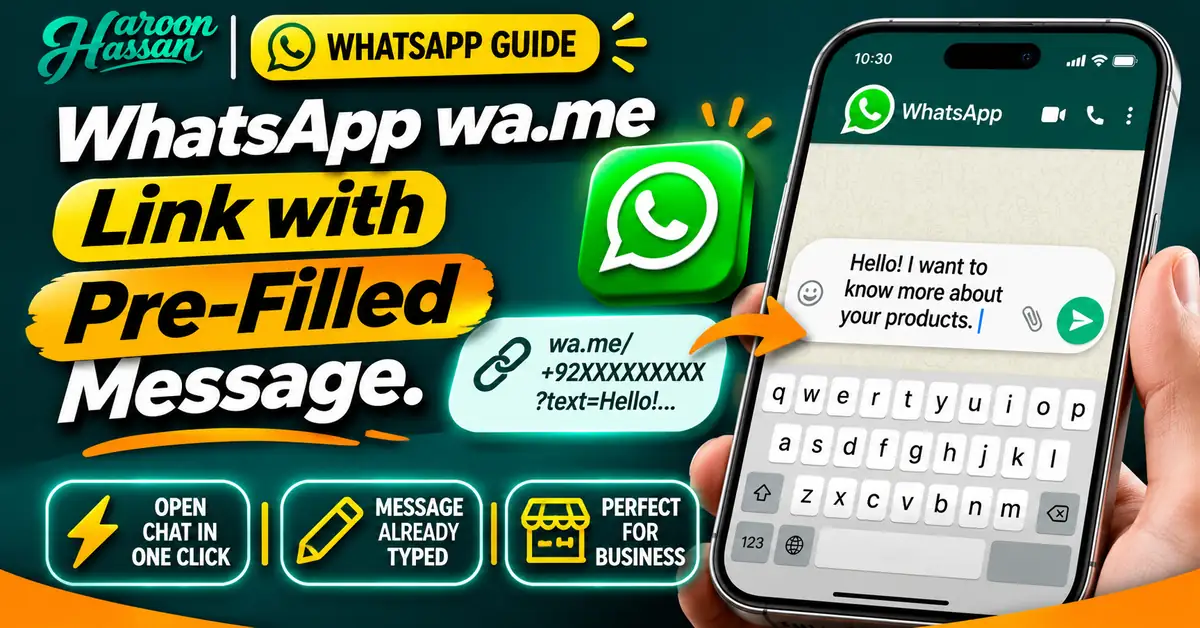
A plain wa.me link opens a blank WhatsApp chat, and a blank chat is where most customers stop. They tap the link, stare at the empty message box, and do not know what to write. Many close the app without sending anything. A pre-filled message solves this problem. Add ?text= to the link, and WhatsApp opens with the first message already typed: "Hi, I want to order the brown attar." The customer only has to press send.
This is an official WhatsApp feature, and it is free. It takes about two minutes to set up. This guide explains the exact format, the URL-encoding rules, five ready-to-use message templates, and the mistakes that can break a pre-filled link.
What Is a Pre-Filled Message?
A pre-filled message is text attached to a wa.me link. When someone taps the link, WhatsApp opens a chat with your number and places the message in the text box. Two facts from WhatsApp's own help page are important:
- The message is only pre-filled, never sent automatically. The customer always taps send. A link cannot message anyone on your behalf.
- It works on phones and WhatsApp Web, as long as the number belongs to an active WhatsApp account.
The basic format, from WhatsApp's "How to use click to chat" page, is:
https://wa.me/923001234567?text=Hello%20I%20want%20to%20place%20an%20order
That example follows WhatsApp's own format: https://wa.me/1XXXXXXXXXX?text=I'm%20interested%20in%20your%20car%20for%20sale. The number must be in full international format, using digits only. There is no plus sign, no spaces, no dashes, and no leading zero. For a Pakistani number, 0300 1234567 becomes 923001234567. If you have not made a basic link yet, start with our guide on creating a WhatsApp click-to-chat link.
Step 1: Write the Message First
Before creating a link, write the message your customer should send. A strong pre-filled message has three parts: a greeting, what the customer wants, and where they found you.
- Good: "Hi, I saw your Facebook post about the brown attar. What is the price?"
- Too vague: "Hi"
- Too long: a full paragraph about your shop's history — nobody reads that before pressing send.
Keep the message under about 100 characters. Short messages are more likely to be sent, while long ones are often edited or abandoned. Use the language your customers actually speak. English, Urdu, and Roman Urdu all work in a pre-filled message.
Step 2: URL-Encode the Message
A link cannot contain raw spaces or certain symbols. Each one must be replaced with a code. This is called URL encoding, and incorrect encoding is the most common reason pre-filled messages break.
| Character | URL-encoded value |
|---|---|
| space | %20 |
| , (comma) | %2C |
| ? (question mark) | %3F |
| & (ampersand) | %26 |
| # (hash) | %23 |
| new line | %0A |
For example, "Hi, I want to order" becomes "Hi%2C%20I%20want%20to%20order". The full link is:
https://wa.me/923001234567?text=Hi%2C%20I%20want%20to%20order
The apostrophe in "I'm" can remain as it is because WhatsApp's own example leaves it unencoded. Emojis also work, but they are best kept out of pre-filled messages. They make the link very long, and some older phones may display them oddly.
The character that causes the most problems is &. A raw & cuts the text off at that point because browsers treat it as the start of a new parameter. "Price & delivery" must be written as "Price%20%26%20delivery". If a pre-filled message ever arrives cut short, an unencoded & is almost certainly the cause.
Step 3: Build the Full Link and Test It
Put the parts together:
https://wa.me/ + your number + ?text= + your encoded message
Then test the link before sharing it anywhere. Open it in your browser, and your own chat should open with the message already typed. If it opens a blank chat, check the encoding. If it shows an error, check the number format first. A plus sign, spaces, or a leftover leading zero are the usual causes — the full checklist is in our wa.me link troubleshooting guide.
If manual encoding feels fiddly, use a link generator. It encodes the message for you and shows a live preview before you copy the link.
Five Ready-Made Message Templates
Copy these templates, replace the details in brackets, and encode them before use:
- Order inquiry (shop): "Hi, I want to order [product name]. Is it available?"
- Price question: "Hi, I saw your post about [product/service]. What is the price?"
- Appointment booking: "Hi, I want to book an appointment on [day]. What time is free?"
- Service inquiry: "Hi, I need [service] for my [shop/home/office]. Can you share details?"
- Support / after-sale: "Hi, I bought [product] from you. I need help with it."
Using one template for each product works even better. A customer who taps "Order brown attar" arrives already telling you what they want, so you skip the "ji, kya chahiye?" round entirely.
One Link Per Place: Know Where Each Chat Came From
A wa.me link cannot tell you who clicked it, but the pre-filled message can tell you where the click came from. Give every placement its own message:
- Facebook page button: "Hi, I found you on Facebook. I want to order."
- Instagram bio: "Hi, I found you on Instagram. What is the price?"
- Printed flyer or shop counter: "Hi, I scanned your QR code at your shop."
When the chat arrives, its first line tells you which channel brought it. No analytics dashboard is needed. This is the simplest free tracking method for a small business.
The No-Number Link: Let People Forward Your Message
You can also create a link with a message but no number:
https://wa.me/?text=Check%20out%20this%20offer
When someone taps it, WhatsApp shows a list of their own contacts so they can choose who to send the message to. This format is made for sharing a discount, announcement, or event invitation. Your customer forwards it to friends, and the message arrives pre-written. Do not use it as your business contact link, though: without a number, nobody can reach you through it.
Turn the Link into a QR Code
A pre-filled link plus a QR code is the strongest combination for offline places: your shop counter, product packaging, a business card, a flyer, or a stall at a bazaar. The customer scans the code, the chat opens, and the message is already typed. Print the QR code large enough to scan from arm's length, and always test the scan yourself before printing a hundred copies.
Common Mistakes That Break Pre-Filled Messages
These five mistakes cause most broken pre-filled links — and all of them are easy to avoid.
- Raw spaces in the link. A space in the URL breaks it in bios, emails, and printed material. Every space must be
%20. - Unencoded &, ?, or #. Each has a special meaning in a URL and will cut or change your message. Encode all three.
- A message that is too long. If the text runs past two lines in the chat box, customers may edit it or give up. Keep it to one short sentence.
- Forgetting to test. Every link should be opened once on your own phone before it goes on a poster, a bio, or an ad. A broken link in a paid ad is money thrown away.
- Treating it as an auto-reply. The message is only typed, not sent. If nobody is available to answer, the chat still dies. Set up a greeting message or quick replies in the WhatsApp Business app.
Skip the manual encoding
Build your wa.me link with a pre-filled message, ready-made templates, an order-form builder and website chat-button code — free, no signup.
Open WhatsApp Link GeneratorFrequently asked questions
Is the pre-filled message sent automatically?
No. WhatsApp only places the text in the chat box. The customer must tap send. Nothing is ever sent without them pressing the button.
Can I add a pre-filled message without a phone number?
Yes. Use https://wa.me/?text= followed by your encoded message. WhatsApp will ask the person to choose one of their contacts to send it to. This is for sharing, not for receiving chats.
Is there a character limit for the pre-filled message?
WhatsApp and Meta do not state a limit for plain wa.me links. In practice, keep it under about 100 characters. Short messages get sent, while long ones are edited or abandoned.
Does a pre-filled link work on WhatsApp Web and desktop?
Yes. The link works on phones and on WhatsApp Web. On a desktop, it opens WhatsApp Web or the desktop app with the same pre-filled text.
Why does my message arrive cut off in the middle?
Almost always, the cause is an unencoded & in the text. Replace every & with %26. Also check for a raw # or ?, which need %23 and %3F.
Can the pre-filled message be in Urdu?
Yes. Urdu, Roman Urdu, and English all work. Urdu text becomes longer when encoded, so keep Urdu messages especially short.